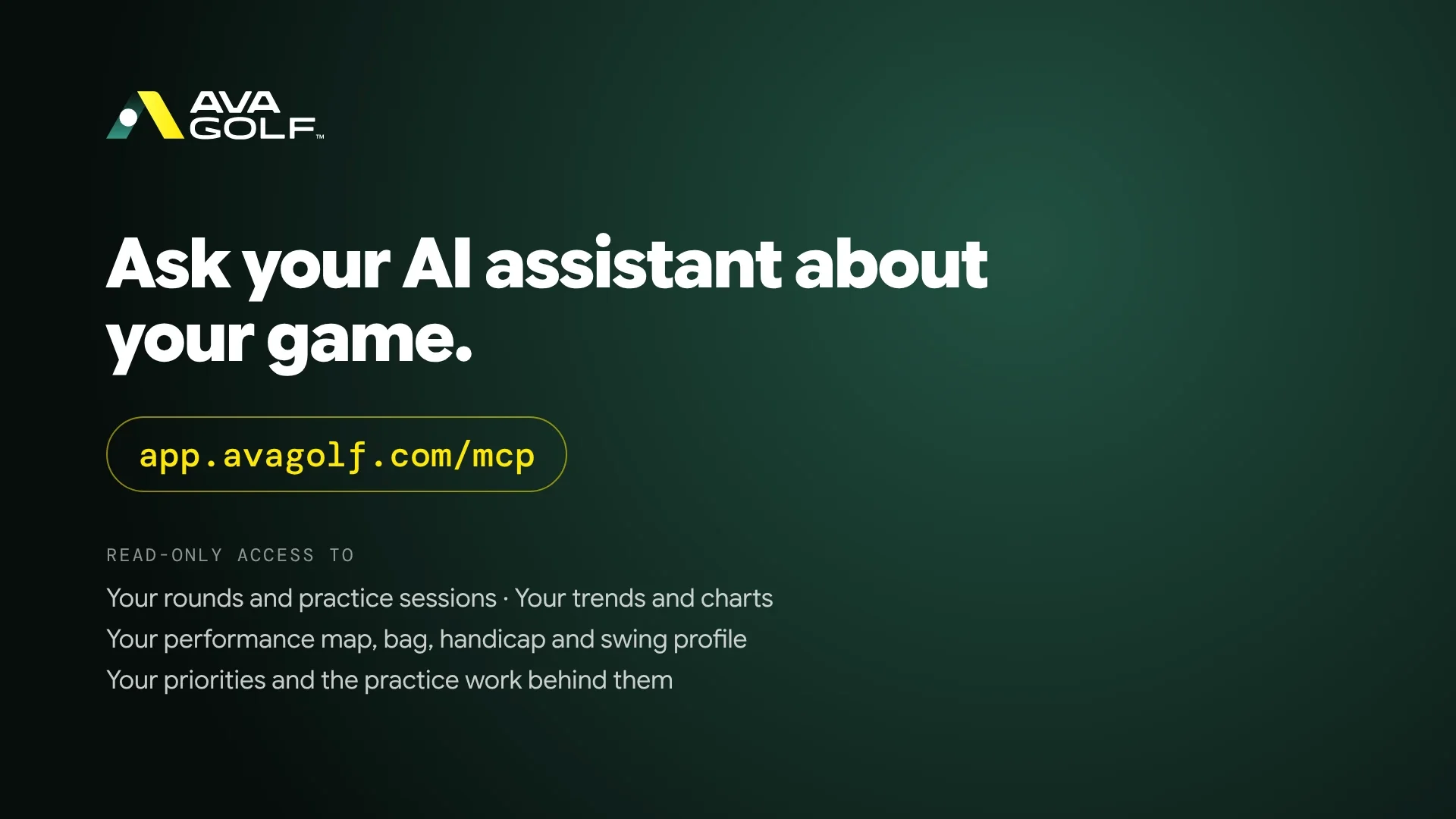
You can now ask your AI assistant about your golf game and get answers built on your own AVA Golf data. Connect Claude, ChatGPT or another assistant that supports custom connectors, and it can read your rounds, practice sessions, trends, priorities, bag, handicap, swing profile and performance map, then talk them through with you in plain language.
It takes a few minutes to set up, it only ever reads your data, and you can disconnect it whenever you like. Here’s how.
What your assistant can read
Once you’ve connected, your assistant can look at the same analysis you see in AVA Golf, including everything that comes in from your GPS tracker and your other connected devices:
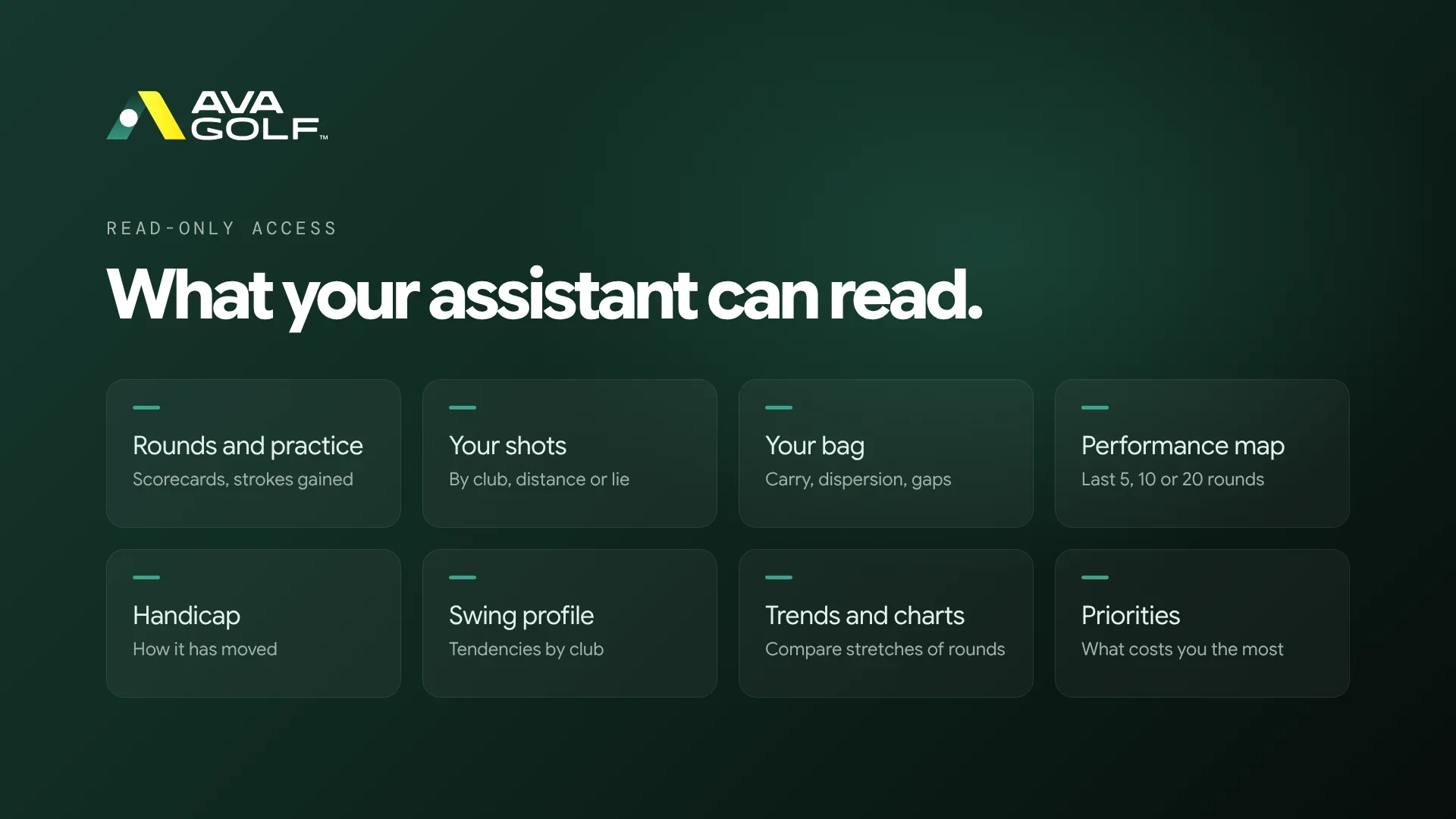
- Rounds and practice sessions. Scorecards hole by hole, strokes gained by phase, the moments that cost you on a round, weather, and the clubs you used in a practice session.
- Your shots, grouped the way you ask. Shot counts, strokes gained, distance and dispersion by club, category, distance band or lie, on the course, at the range, or both.
- Your bag. Every club with its carry on the course and in practice, its dispersion, the gap to the next club, and the make, model and loft you’ve set up.
- Your performance map. Strokes gained by category and subcategory over your last 5, 10 or 20 rounds.
- Your handicap. How it has moved over time, and the rounds behind it.
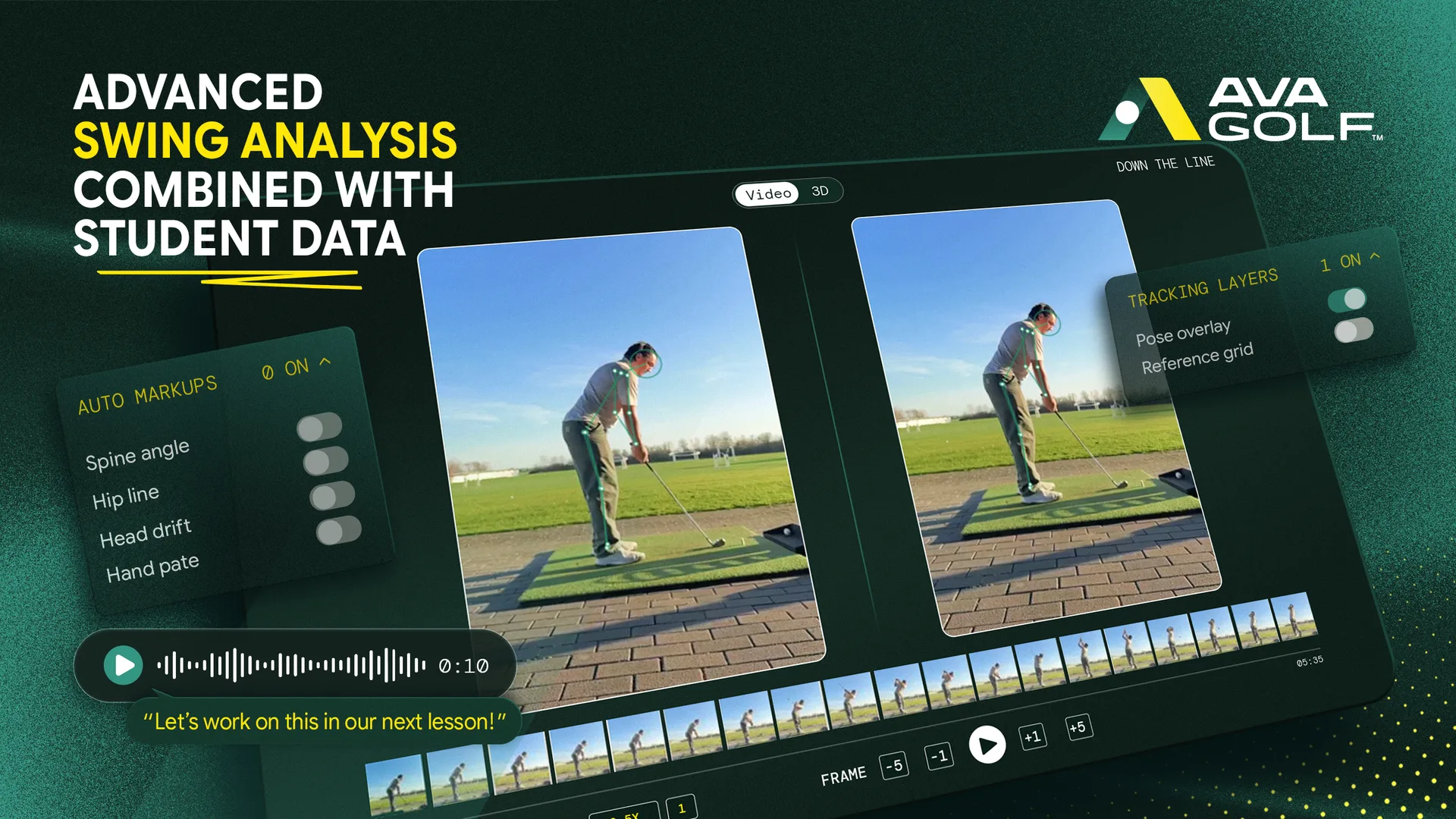
- Your swing profile. Tendencies for each club category, such as club path, face, attack angle and carry bias, with the practice behind them.
- Your trends and charts. How each part of your game compares between two stretches of rounds, and the data behind the charts on your Trends pages.
- Your priorities. What’s costing you the most strokes, worst first, and the practice sessions you’ve put in against each one.
If you want a refresher on what those charts show, our post on AVA Golf’s performance visualizations walks through them.
What you’ll need
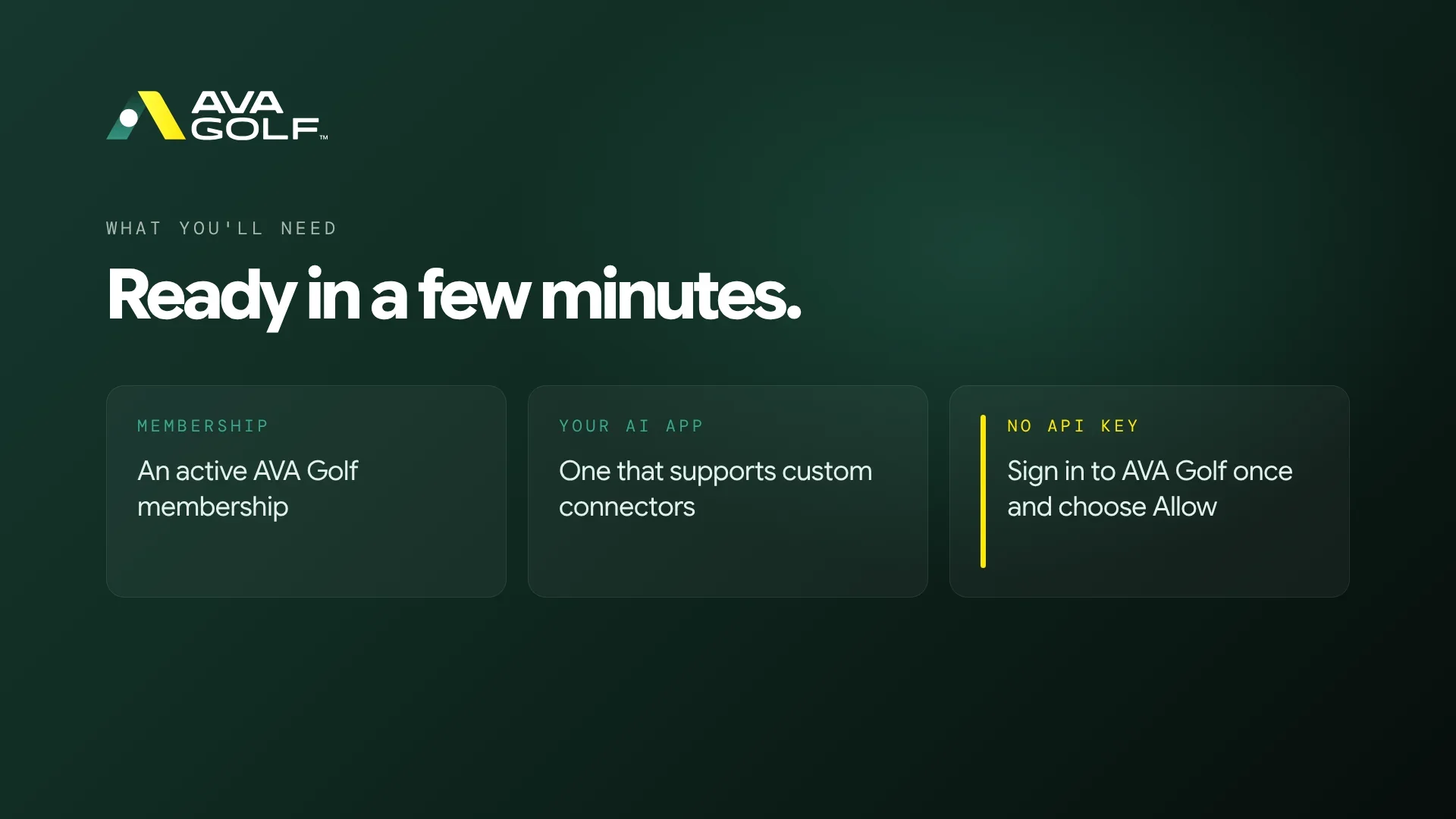
- An active AVA Golf membership.
- An AI assistant that lets you add a custom connector, sometimes called a remote MCP server. Claude and ChatGPT both offer this, and so do desktop apps and code editors such as Claude Desktop, Cursor and VS Code.
There’s no API key to create or copy. You sign in to AVA Golf once and approve the connection, and that’s it.
How to connect your AI assistant
Step 1: Add AVA Golf as a custom connector
In your assistant’s settings, find the option to add a custom connector and give it this address:
https://app.avagolf.com/mcp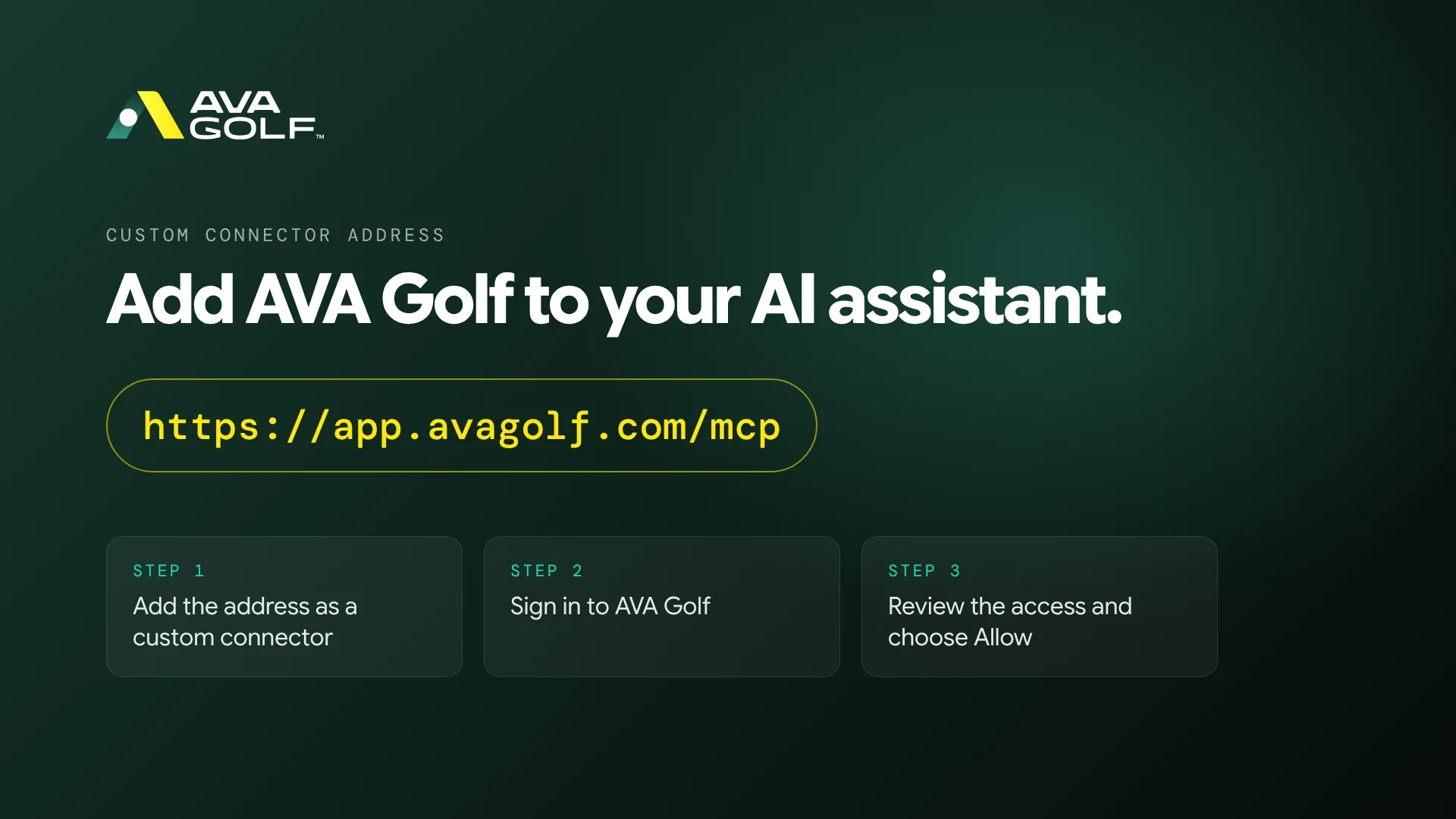
Step 2: Sign in to AVA Golf
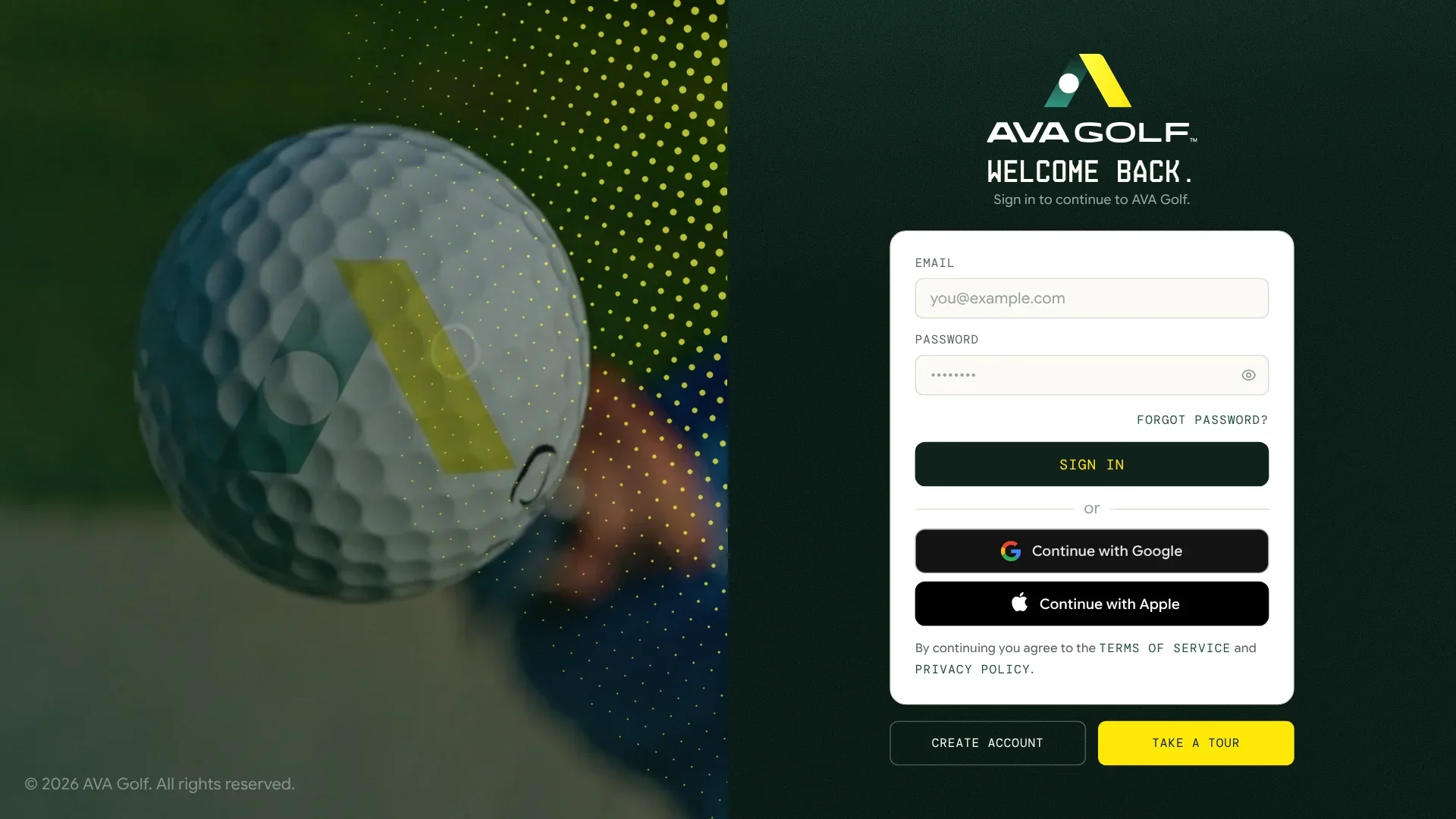
Your assistant registers itself with AVA Golf and opens our sign-in page. Sign in the way you usually do. If you’re already signed in, you’ll go straight to the next step.
Step 3: Review and allow access
AVA Golf shows you which assistant is asking and exactly what it would be able to read, in plain language. Choose Allow to finish connecting, or Deny to send your assistant back without access.
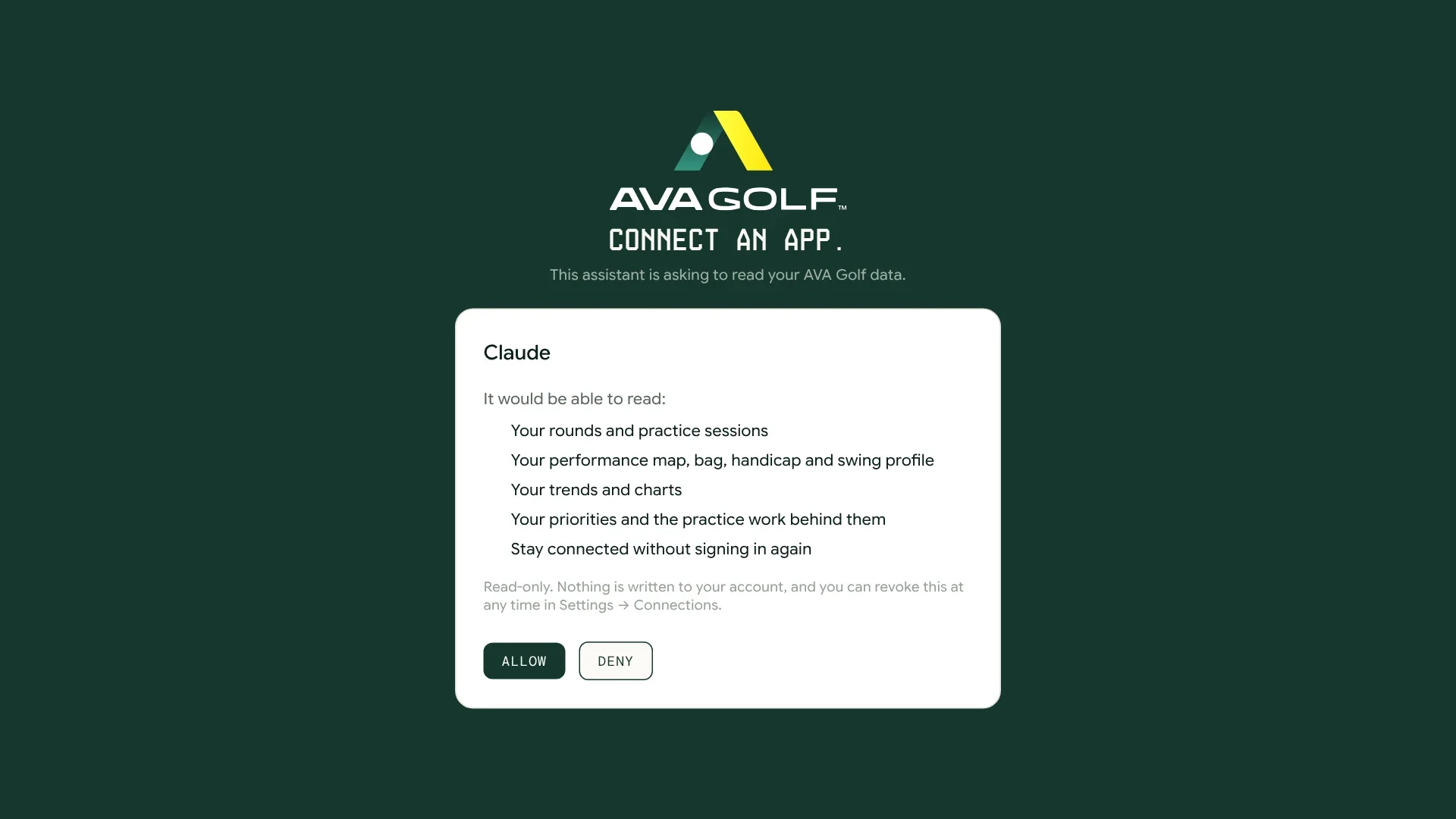
The list shows what your assistant asked for, and one choice covers all of it. “Stay connected without signing in again” keeps your assistant signed in, so you aren’t asked to log in every time you have a question.
Step 4: Ask about your game
That’s it. Head back to your assistant and ask it something about your golf. A few ideas to start with:
- “How did my last round go, hole by hole?”
- “Where am I losing the most strokes over my last 10 rounds?”
- “What’s the carry gap between my 7-iron and 8-iron, on the course and at the range?”
- “How has my handicap moved this season?”
- “What should I work on first, and have my practice sessions been helping?”
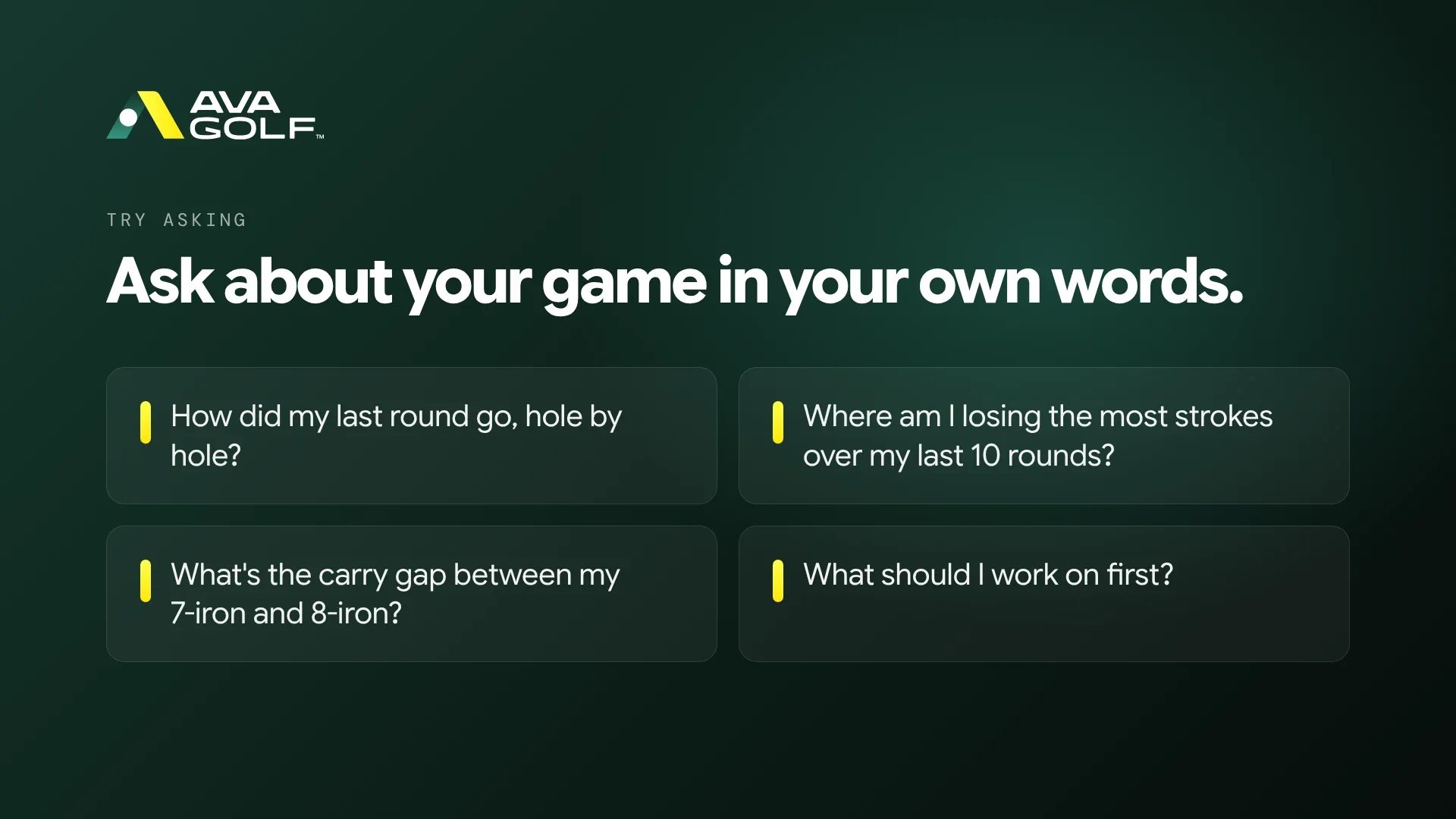
Your priorities make a great starting point. If you’re curious why we rank them the way we do, why golfers who track everything still don’t improve explains the thinking.
Using a desktop app or code editor
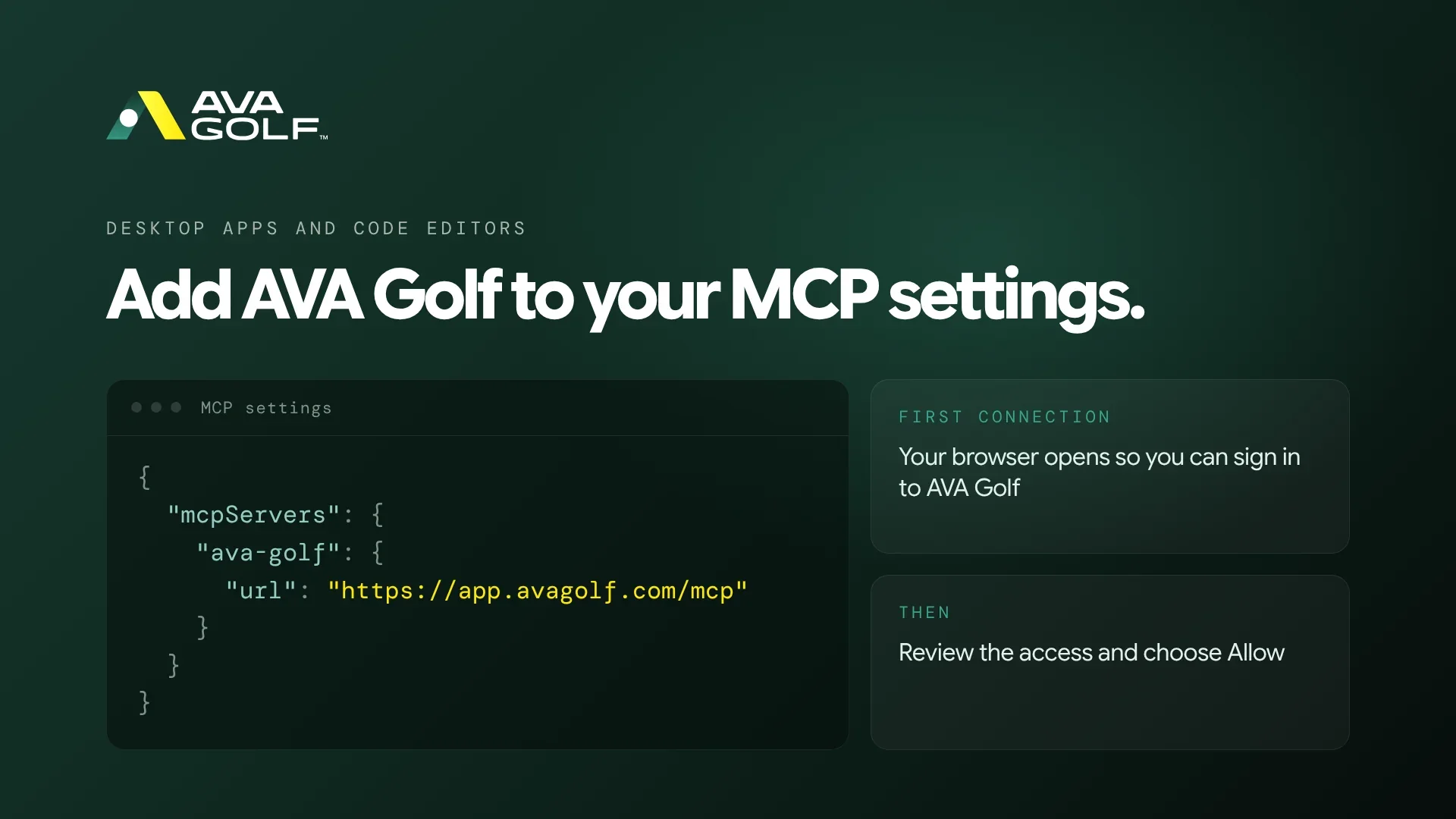
Apps like Claude Desktop, Cursor and VS Code take a server address in their MCP settings. Add AVA Golf like this:
{
  "mcpServers": {
    "ava-golf": {
      "url": "https://app.avagolf.com/mcp"
    }
  }
}
The first time it connects, the app opens your browser so you can sign in to AVA Golf and approve access, just like steps 2 and 3 above.
Manage or disconnect your assistant
Every assistant you’ve connected is listed in AVA Golf under Settings → Connections → Connected apps, along with what it can read and the date you connected it. Choose Revoke to disconnect one. It loses access straight away, and it would need to ask for your approval again to reconnect.
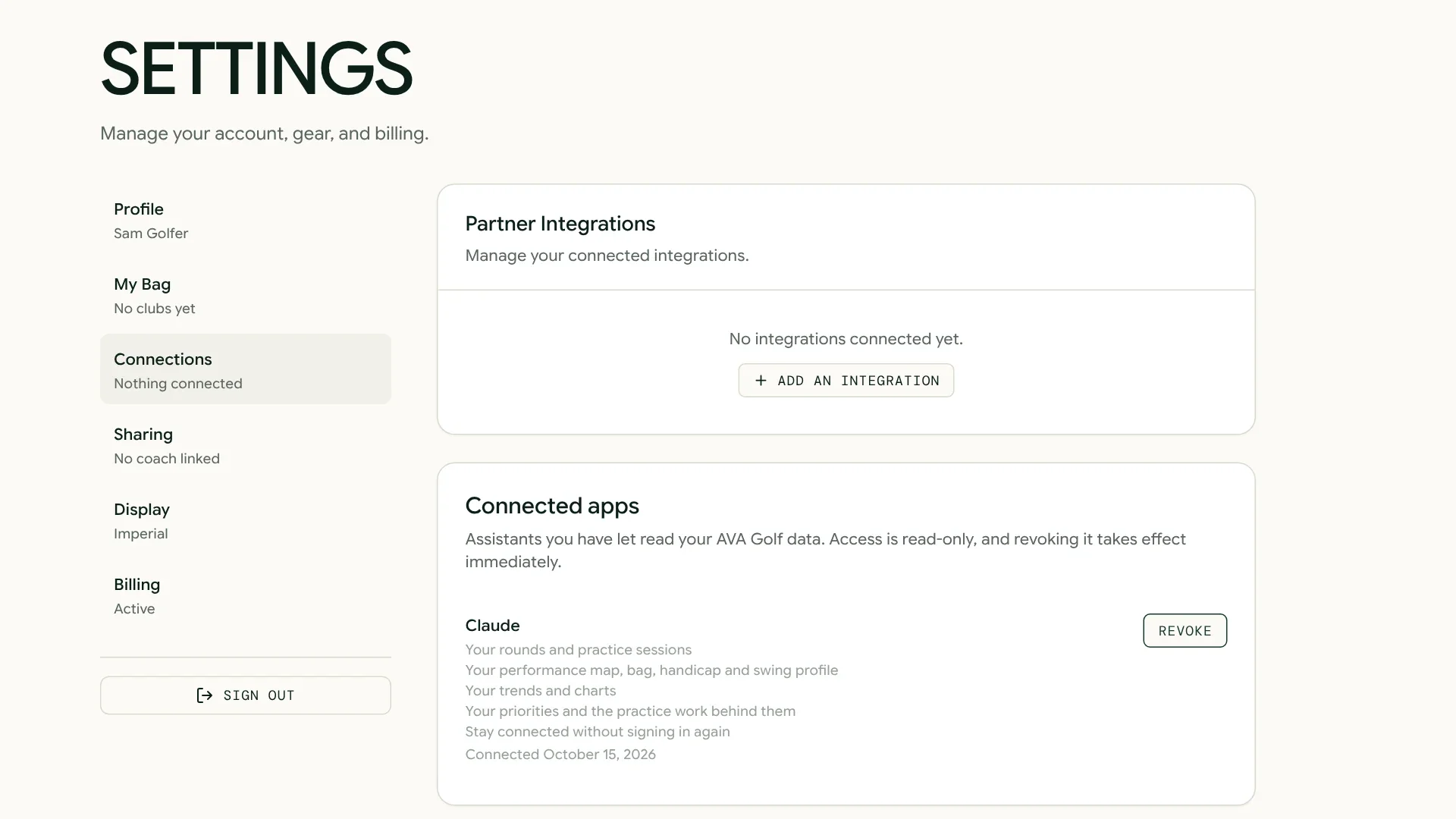
Disconnecting an assistant doesn’t touch your data, your device connections or your account.
Frequently asked questions
Which AI assistants work with AVA Golf?
Any assistant that supports custom connectors (remote MCP servers) and signs in with OAuth. That includes Claude and ChatGPT, plus desktop apps and code editors such as Claude Desktop, Cursor and VS Code.
Can my assistant change anything in my account?
No. The connection is read-only. Your assistant can read your data, but nothing is ever written to your account. If an assistant offers to change something in AVA Golf, that’s the assistant’s own suggestion, not something it can actually do.
Can I revoke access?
Yes, anytime, under Settings → Connections → Connected apps. Revoking takes effect on your assistant’s very next request.
What data can it see?
Only your own: the rounds, practice sessions, shots, bag, handicap, swing profile, performance map, trends and priorities listed above, limited to what you allowed on the approval screen. It can’t see anyone else’s data.
Does it cost extra?
No. It’s part of your AVA Golf membership, and it needs that membership to be active. Your AI assistant’s own plan decides whether custom connectors are available to you, so check with your assistant if you don’t see the option.
My assistant says it needs another permission. What do I do?
That means your assistant asked for less than everything when it connected. Revoke the assistant under Settings → Connections → Connected apps, connect it again, and allow everything it asks for.
Give it a try
Connect your assistant, ask it about your last round, and see what it finds. If you’d like to catch up on what else is new this month, the October 2026 update has the rest, and the August 2026 update introduced the driving swing profile your assistant can now read.
Log in to AVA Golf to get started. See you out there.
The AVA Golf Team